Find added and missing rows between Excel files
To find added and missing rows between Excel files, choose an older order export as the reference and match the newer export by Order ID. Records found in only one file are separate from records with changed amounts. In this sample, two orders stay the same, one appears only in the newer file, and one appears only in the reference. Row order changes do not affect the match.
Download the sample files
These fictional records are safe to use for practice. Each file contains only the data shown in this tutorial.
What is in the sample files
Reference file
| Order ID | Amount |
|---|---|
| SO001 | 120 |
| SO002 | 80 |
| SO003 | 50 |
Comparison file
| Order ID | Amount |
|---|---|
| SO003 | 50 |
| SO001 | 120 |
| SO004 | 60 |
Follow these steps
Choose the reference direction
Download baseline.xlsx as the older order export and target.xlsx as the newer export. Your own files should cover the same business scope and reporting period, with one unique Order ID per row. Use the same currency and definition of Amount.
Select both order exports
Add the older export as the Reference file and the newer export under Files to compare. Select Orders in each workbook. Check the preview for first-row headers and text values in Order ID.
Match Order ID and compare Amount
Select Order ID under Match rows by and Amount under Columns to compare. Keep Raw values. Matching on the stable ID means an amount change is flagged as changed, rather than splitting that order into an added row and a missing row.
Review records found in only one file
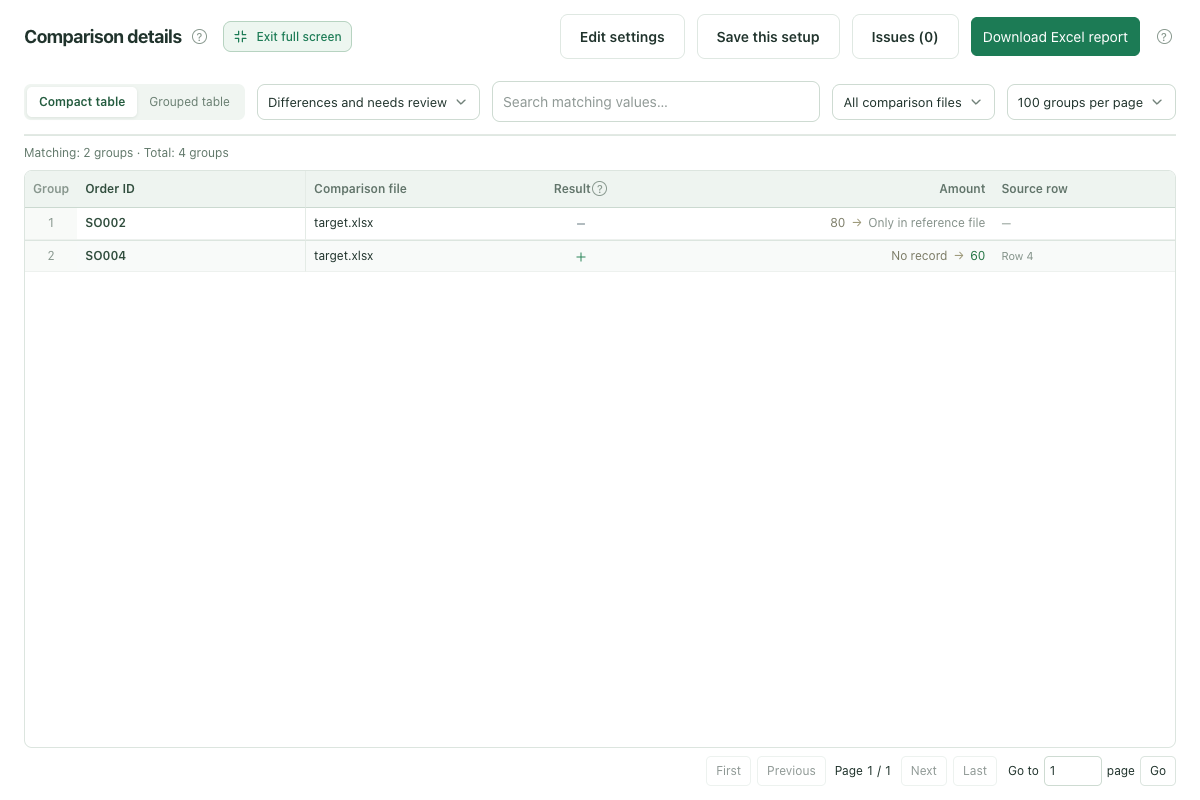
Click Compare files. SO004 appears only in the comparison file, and SO002 only in the reference. Select All records to see unchanged SO001 and SO003. Expect two same, one added, one missing, and no changed records.
Save the report and check the source
Download the complete Excel report and follow source row references to check additions, omissions, and export filters. The report describes differences between files; it does not determine whether an order was canceled or update your data.
Expected results
Match rows by: Order ID. Columns to compare: Amount.
| Record | Result | What changed |
|---|---|---|
| SO001 | Same | Both files contain this order with Amount 120. |
| SO002 | Only in reference file | The older reference contains this order; the newer file does not. |
| SO003 | Same | Amount is 50 in both files. Its new row position does not affect matching. |
| SO004 | Only in comparison file | The newer file contains this order with Amount 60; the reference does not. |
Before using your own files
- Added and missing depend on which file is the reference. Swap the files and SO002 becomes added while SO004 becomes missing. The two unchanged orders still match.
- A missing row means the comparison file has no matching ID. It does not establish that the order was deleted. Check export filters, scope, and ID formatting in the source.
- If an order spans multiple line items, match by Order ID plus SKU or another stable line item identifier. Resolve blank or duplicate keys before treating rows as confirmed additions or omissions.
- Preserve leading zeros by saving IDs as text. RowKite cannot restore lost ID values and does not merge, delete, or create orders.
Limits: 2–5 .xlsx / .xls files, with both formats allowed in one comparison. Use standard, unencrypted Excel 97–2003 tables for .xls. Limits are 10 MiB per file, 30 MiB total, 10,000 rows and 50 columns per sheet, and 1 million populated cells across all files. Reports are always exported as .xlsx. Refreshing, closing the page, or leaving the workspace clears the current files.
Read the full guide and comparison rules · Learn how files and results are handled
Keep reading
Download sample files, follow the steps, and apply the same approach to your own records.